EV Charger App Shows the Wrong Plug: How to Check
If a charger app shows the wrong plug, check the connector at the stall, confirm AC or DC compatibility, and verify access before counting on that stop.
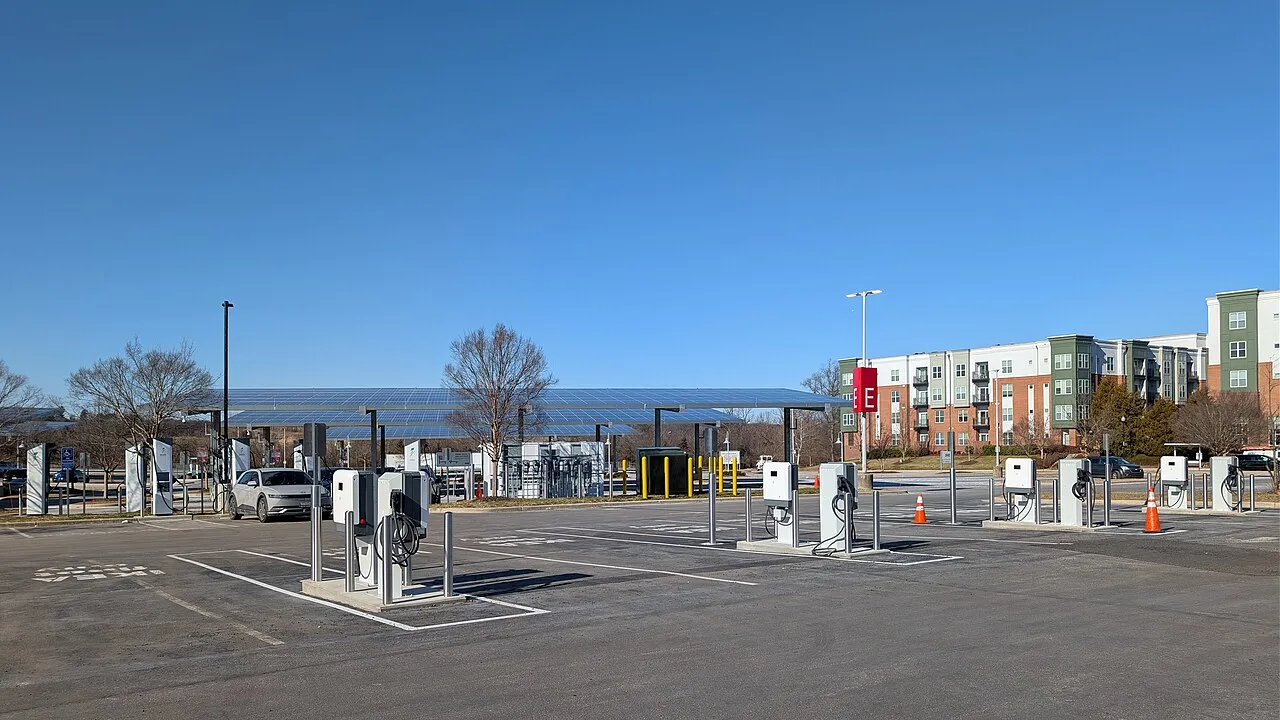
The short answer: Treat the app's plug information as a starting point. Check the connector and station label at the actual stall, then confirm that your vehicle can use that charger and that you have access before depending on it.
If a charger app shows a plug that does not match what you see at the station, rely on the connector at the stall. Match the stall's identification number to the app entry, inspect the cable end or socket, and check whether the equipment offers AC or DC charging. A connector that appears to fit still does not guarantee that your vehicle can start a session or that you are allowed to use the station.
First, make sure you are looking at the right stall
A charging site can have several units with different connectors. An app may show information for the site as a whole, for a particular unit, or for one cable on a unit with more than one. Before deciding that the app is wrong, compare the identification number on the charger with the number in the app. Check the address and the location of the stall as well. If the numbers do not match, look for the correct unit in the app rather than assuming every charger at the site has the same hardware.
At the stall, inspect the connector that a driver would actually use. Read any connector names printed on the unit, and look at the cable ends. If the station has a socket instead of an attached cable, check the socket and the charging cable you would need to bring. A photo in an app can help you find a charger, but it may show a different stall or an earlier arrangement. The equipment in front of you is the clearest evidence of which physical connection is available there.
Identify the connector and the type of charging
In the United States, common connector names include J1772, CCS1, CHAdeMO, and NACS. J1772 is used for AC charging. CCS1 has a J1772-shaped upper section with two additional large contacts below it and is used for DC fast charging. CHAdeMO is a separate DC connector. NACS can carry AC or DC power, so its shape alone does not tell you which type of charger you have found. Check the station's label and charging mode as well as the plug.
Compare the connector with your vehicle's charge port and its charging instructions. A vehicle that accepts a J1772 AC plug does not necessarily accept a CCS1 DC plug just because the upper part looks familiar. Likewise, finding a NACS connector does not establish whether the station delivers the kind of charging your vehicle can use. The relevant question is whether this vehicle can charge from this particular connector, at this particular station, using its approved equipment.
Do not try to force a connector into a port that does not match. Check for damage, debris, or a cable that cannot reach the vehicle without strain. If the station has two cables, determine which one the app associates with the unit and which one your vehicle needs. The presence of a suitable plug on the other side of a charger does not help if that cable is unavailable or the station cannot start a session through it.
Check adapters and access separately
An adapter may bridge a physical mismatch, but the connector shapes are only part of the decision. Check your vehicle manufacturer's guidance for the adapter and the kind of charging you plan to use. An adapter intended for AC charging should not be assumed to work at a DC fast charger, and a DC adapter should not be assumed to work at every station with the same connector. Use an adapter only when the vehicle, adapter, and charger support that combination.
Access is a separate issue. Some stations require an account, an eligible vehicle, a particular payment method, or activation through the operator's app. A station can have the plug your vehicle needs and still be unavailable to you. Before making it your only planned stop, check the operator's information for vehicle eligibility, activation, and current station status. If those details are unclear, keep another charging option within reach.
Also distinguish a station that cannot be used from one that is merely occupied. An app's connector information may be mistaken even when its availability information is current, or the reverse may be true. A free stall is useful only if its actual connector, charging mode, and access rules work for your vehicle. Treat each of those as a separate check.
What to do if you are already at the charger
If you have found a compatible connector, follow the instructions on the charger and in the operator's app to begin a session. Confirm that the vehicle and charger indicate charging has started before walking away. Plugging in successfully is not the same as receiving power: an authorization problem, station fault, or communication error can prevent the session from starting.
If the connector is wrong, check the other units at the site using their individual identification numbers. A different stall may have the connector you need even if the site entry is confusing. If none is suitable, use your remaining range to choose another station you can reach comfortably. Verify its connector, charging mode, access rules, and current status before driving there. When range is tight, prioritize a reachable option over an unverified charger that would leave little room for a further change of plans.
If the physical plug seems right but charging will not start, read the error shown by the station, vehicle, or app. Check that you selected the correct unit for activation and followed the operator's connection steps. If the station directs you to contact support, give the operator the unit number and the error you see. Avoid treating a failed start as proof that the app's connector description was the sole problem; the failure may have a different cause.
Report the mismatch so other drivers can find it
Use the operator's reporting or support channel to identify the site, unit number, and connector shown in the app, then describe the connector physically present. If the app permits a correction or photo, make sure it refers to the exact stall. A clear report can distinguish a wrong connector entry from a charger that has been moved, replaced, or confused with a neighboring unit.
When sharing a correction in another charging app, use the same care. Describe what you can verify at the station, including the unit identification and the plug on its cable or socket. Avoid claiming that the charger works for every vehicle simply because the connector fits yours. A useful correction tells the next driver what they can inspect and what remains to be checked.
Plan around a plug mismatch
For a stop you will depend on, check more than the plug icon before leaving. Open the individual charger entry, compare it with the operator's information, and identify a reachable alternative. At the site, use the unit number and the actual hardware to settle any disagreement between apps. This sequence takes the app's information seriously while recognizing that a site entry, a stall, and a cable are not always described in the same way.
The practical rule is to verify in stages: find the correct unit, identify its physical connector, confirm AC or DC compatibility, check any adapter and access requirements, and make sure charging actually starts. If any stage fails, choose another suitable charger and report the mismatch. That is the safest way to turn an uncertain plug icon into a charging decision you can act on.
Frequently asked questions
Should I trust the charger app or the plug at the stall?
Use the app to locate the charger, then check the unit number and physical connector at the stall. Confirm charging mode and access before relying on it.
Does a matching plug mean my EV can charge?
No. The vehicle must support the station's AC or DC charging mode, and you may need to meet the station's access requirements. Confirm that a session starts.
Can an adapter solve a wrong plug in a charger app?
Only if your vehicle, adapter, and charger support that combination and charging mode. Check the vehicle manufacturer's guidance.
What should I report when an app shows the wrong connector?
Report the site and unit number, the connector shown in the app, and the connector physically present. Include a photo if the reporting channel allows it.
Related stories
How to Choose an EV for Caregiving and Support Trips
Compare passenger access, rear-seat comfort, equipment storage and charging routines to find an EV that fits recurring appointments and support trips.
Choosing 120V or 240V Charging for an EV at Home
A standard outlet may work for an EV that sits parked for long stretches. A 240V setup adds charging power, which can matter when daily driving uses more energy.
How to Plan EV Charging When You Park on the Street
Street parking can work with EV ownership when you confirm local rules, identify dependable charging, and build a routine that fits where you park.