Why EV Charging Schedules Shift With Daylight Saving Time
An EV charging schedule can shift when the car, charger or app uses a different clock. Here is how to get charging back inside your intended hours.
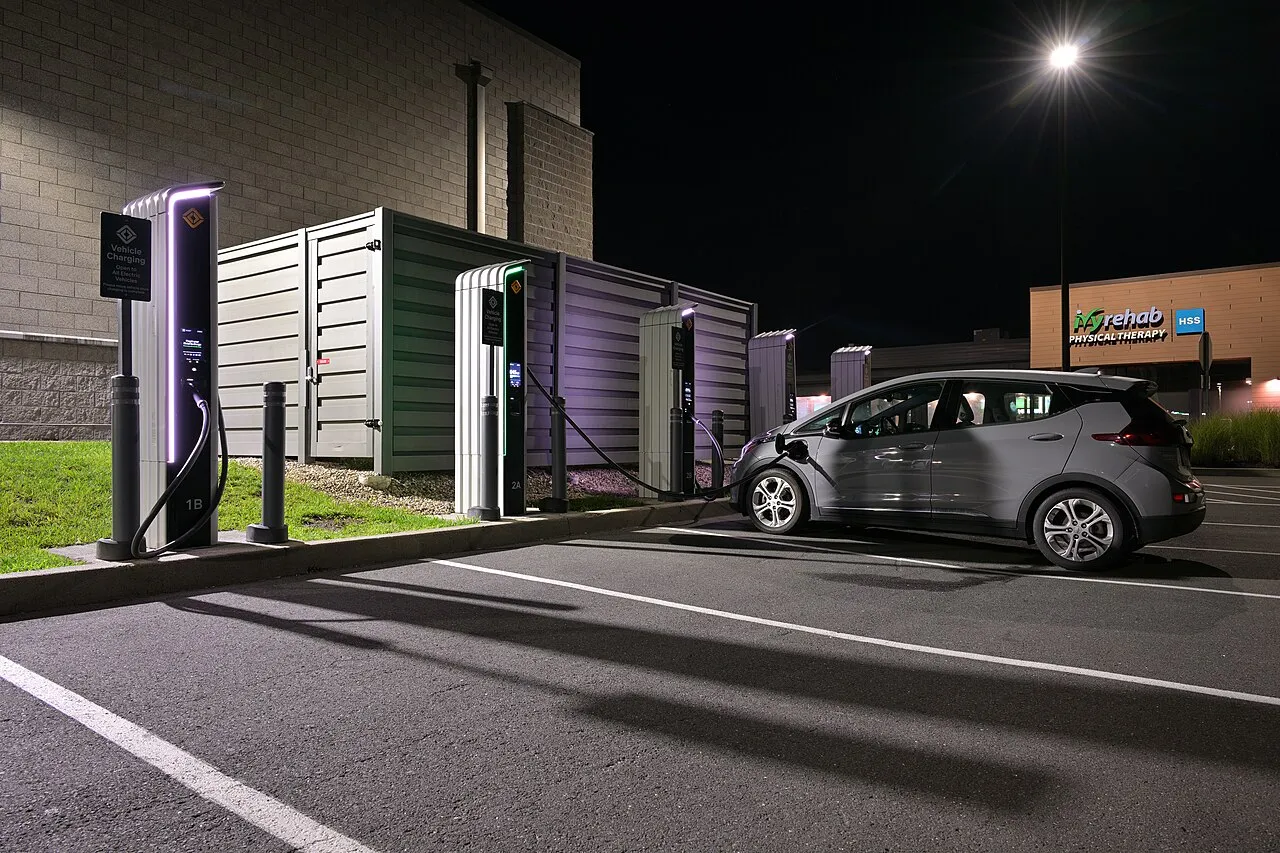
The short answer: An EV’s scheduled charging can move when the vehicle, charger or scheduling service handles daylight saving time or time zones differently. The session follows the clock used by the system controlling it, which may differ from the time shown on your phone or dashboard.
Your EV’s charging timer can appear to change after a clock shift because the system controlling charging is following a different clock from the one you expect. The vehicle, a connected home charger and a scheduling service can each have their own time settings. If the active controller does not make the same daylight saving adjustment as your local clock, charging can begin or end outside your intended hours.
The important distinction is between the time displayed and the time used to make a charging decision. A dashboard or phone showing the correct local time does not establish that every connected scheduling system has updated. Finding which system controls the session is the first step toward correcting it.
Which clock controls scheduled charging?
A charging schedule can operate in several places. The vehicle may decide when to accept power, the charger may decide when to make power available, or a connected service may coordinate charging through either device. An app can be the interface for one of those systems without being the clock that actually runs the schedule.
That distinction matters when troubleshooting. Changing the time on your phone may alter how an app displays a session, but it does not necessarily change the clock or time zone stored by the charger or vehicle. Similarly, correcting the dashboard clock may not correct a separate charging-location setting.
Check where you originally created the schedule and whether another schedule is also enabled. Relevant controls may include a charging window, preferred charging hours, a departure time or a utility-managed program. Their names and behavior vary, so use the instructions for the particular vehicle, charger or service to identify what each setting controls.
Why daylight saving time can move a session
A recurring schedule needs a rule for interpreting time. A schedule tied to local civil time is intended to follow the clock used at that location, including applicable daylight saving changes. A schedule tied to a fixed time reference can fall at a different local hour after the clocks change.
Coordinated Universal Time, or UTC, does not change for daylight saving time. If a service preserves a fixed UTC charging time, its local equivalent changes when the local offset from UTC changes. A system that correctly preserves a local-time schedule instead needs to account for that changing offset.
This does not mean that a service using UTC internally must shift your charging window. It can store times in UTC while still applying the correct local-time rules. The issue is whether the recurring schedule follows your intended local hours, and whether the system knows the correct location and time zone.
The clock-change period itself adds a complication: some local times are skipped when clocks move forward, while others occur twice when clocks move back. A schedule landing within that period requires a rule for handling the missing or repeated time. Check the controller’s documentation rather than assuming every product handles that situation identically.
A time zone is more than the current hour
A clock can show the correct hour today while still having the wrong time-zone configuration. A fixed offset from UTC describes a time difference; a geographic time zone can also define when seasonal clock changes apply. Those settings may agree during part of the year and diverge after a clock change.
Where a controller offers a location-based time zone, check that it matches the charging location. Also check any separate daylight saving option. Avoid compensating for an incorrect time zone by manually moving the clock: that can make the display look right while leaving the underlying scheduling rule wrong.
Travel can expose a similar mismatch. Your phone may adopt the time zone at your destination while a home charger remains associated with its installed location. That can be appropriate for charging at home, but confusing when viewing its schedule remotely. Confirm which location’s time the app is displaying before editing the window.
Two schedules can restrict the same session
If both the car and charger have active schedules, charging generally requires both systems to permit it. The charger must make power available, and the vehicle must be ready to accept it. A mismatch can shorten the usable charging window or prevent the schedules from overlapping.
A clock shift can reveal this even when the arrangement previously worked. If the vehicle follows the updated local time but the charger retains a different time reference, their windows can move apart. Each schedule may look reasonable when viewed separately, while their combined effect produces an unexpected start or stop.
Identify which controller you want to manage routine charging, then review any additional restrictions deliberately. If a utility or managed-charging service also controls timing, check its rules before changing settings. A local override may affect participation in that service, and editing the vehicle’s schedule alone may not remove the external restriction.
Departure time is different from a charging window
A departure setting tells a compatible system when you expect the vehicle to be ready. Depending on its design, the system may calculate a charging start time from the energy needed and the available charging power. That start time can change even when the departure time stays the same.
A permitted charging window serves a different purpose: it defines when charging is allowed. Do not assume that a departure setting automatically confines charging to your electricity plan’s preferred hours. Check how the system handles a situation in which it cannot meet the charging target within the selected window.
This distinction helps separate a clock problem from normal scheduling behavior. If charging begins at a different time but still meets the intended departure setting, the controller may be adjusting its calculation. If the whole allowed window has moved relative to local time, the time-zone or daylight saving configuration deserves closer attention.
How to restore your intended charging hours
- Confirm the local window you want. If the goal is to use a time-of-use electricity rate, check the utility’s current definition of that period, including applicable days and seasonal rules.
- Identify the active controller. Review the vehicle, charger and any connected scheduling service. Note which has a charging window and which has a departure target.
- Check its time settings. Verify the charging location, time zone, daylight saving behavior and any automatic clock setting that the product exposes.
- Resolve competing schedules. Make sure additional windows or managed-charging controls do what you intend. Follow the relevant service instructions when changing participation or overrides.
- Save and verify. Confirm that the controller accepted the change. Review the next planned session, then check the actual charging record after it runs.
If the controller depends on an internet connection for updates or remote changes, confirm that it is connected and has synchronized. A saved change in an app is useful evidence, but the device’s reported schedule and subsequent behavior provide a better check that the intended setting took effect.
Check the charging record against the right clock
Session history can help distinguish an actual timing change from a display change. Compare the recorded start and stop with the intended charging window, while checking whether the history uses local time, UTC or another time zone. Two screens can describe the same event with different timestamps.
For electricity costs, the relevant question is when energy was delivered under the utility’s billing rules. The time you plugged in, the planned start and the actual energy-delivery period are different things. A vehicle can remain connected while waiting for its allowed window to begin.
After correcting the settings, verify an actual session before relying on the schedule again. If the mismatch continues, record the intended window, the controller’s time-zone setting and the observed charging times for support. Those details help identify whether the remaining issue is a clock setting, an overlapping restriction or the scheduler’s behavior.
Frequently asked questions
Why did my EV charging schedule move after daylight saving time?
The system controlling charging may have handled the clock change differently from your local clock. Check the vehicle, charger and any connected scheduling service to identify which one runs the schedule and whether its time zone is correct.
Does the correct dashboard time mean the charging timer is correct?
No. A charger or connected service may use separate time settings. The dashboard can show the correct local time while the active charging controller follows a different clock or time zone.
Can schedules in both the car and charger interfere with charging?
Yes. Charging generally requires the charger to make power available and the vehicle to accept it. If their permitted windows do not overlap, charging can be shortened or prevented.
Is a departure time the same as a charging window?
No. A departure setting establishes when the vehicle should be ready, while a charging window defines when charging is allowed. Check how your system handles those settings together.
How can I confirm that the corrected schedule works?
Review the next planned session, then check the actual start and stop in the charging history. Confirm which time zone the history uses before comparing it with your intended local charging hours.
Related stories

How to Choose an EV When Homes Share a Transformer
A shared transformer can limit when several homes charge at once. Learn what to ask your utility and installer before choosing an EV or charger.

EV Charging With a Shared Meter: Billing, Access and Permission
A shared electric meter does not rule out home EV charging. Agree on permission, fair billing, charger access and electrical work before installation.
Choosing 120V or 240V Charging for an EV at Home
A standard outlet may work for an EV that sits parked for long stretches. A 240V setup adds charging power, which can matter when daily driving uses more energy.