How to Find the Right Public Charger Stall in an App
At a site with several chargers, match the stall ID on the hardware to the ID in the app, then confirm the connector and session before you charge.
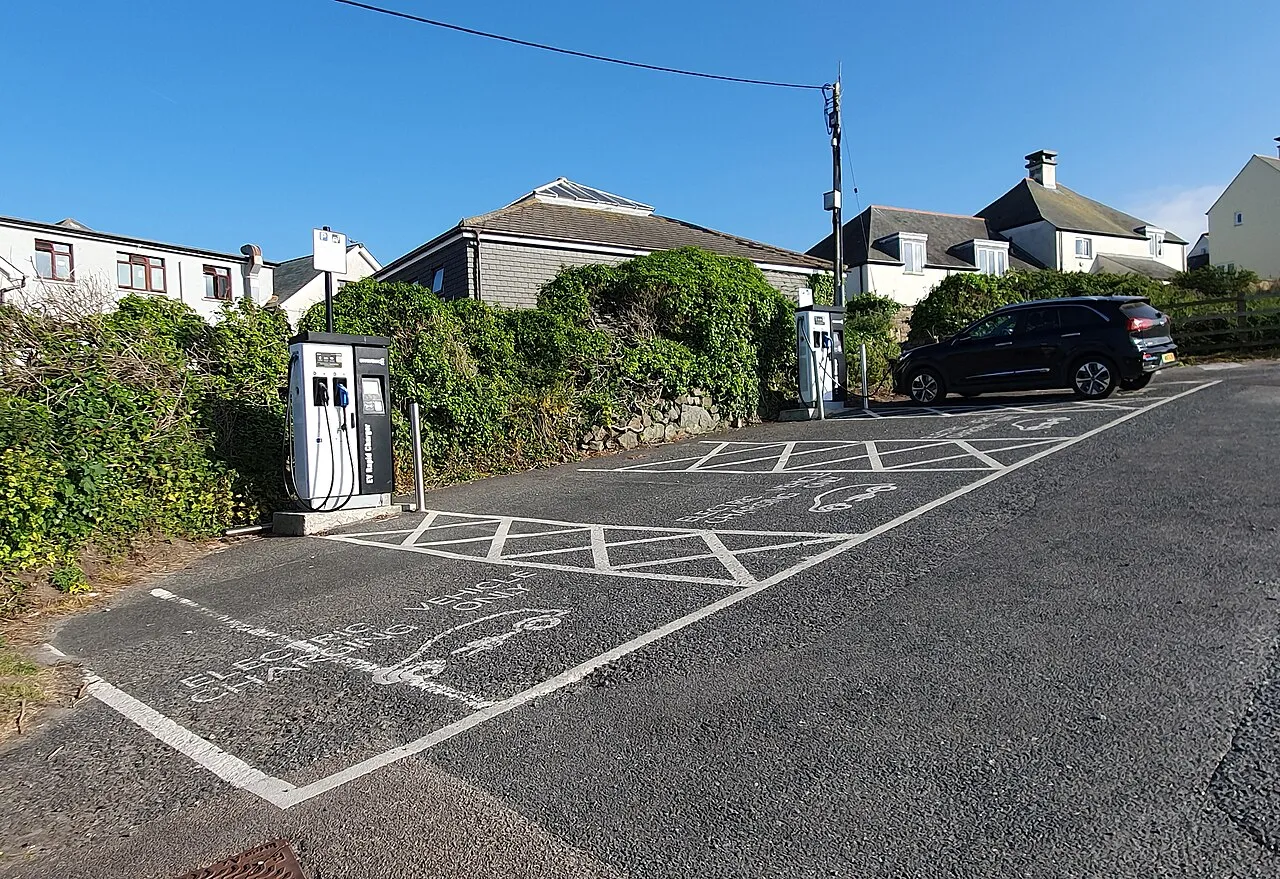
The short answer: Find the ID on the charger or beside its plug and select the matching stall or connector in the charging app. Check that the app shows the session starting on the plug connected to your car.
Find the stall or connector ID on the charger you intend to use, then match it to the ID in the charging app before starting a session. Check the connector as well as the site: one location can contain several chargers, and a single charger can have more than one plug. After you start, confirm that the app and charger show a session on the plug connected to your car.
Find the identifier at the charger
Start at the hardware next to your car. Look for a stall, charger, station, or connector ID on the cabinet, screen, label, or sign near the parking space. The wording and placement vary by operator. Read the entire identifier, including any letters or suffixes. A site name identifies the location, but it may not tell you which individual unit or plug you are standing beside.
Then open the charging location in the operator’s app and look at the available stations or connectors within that site. Match the identifier character for character where possible. Nearby units can look alike, and their map pins may sit too close together to distinguish by position alone. The number painted on a parking space can help you orient yourself, but use it as the app’s stall ID only if the charger or operator clearly connects the two.
Tell the site, charger, stall, and plug apart
A charging site is the overall location. Within it, an app may show separate chargers, stalls, or connectors. Those terms are not always used consistently, so follow the identifiers visible on the equipment and in the app. The important question is which app entry controls the plug that reaches your vehicle, not simply whether you have opened the right location on the map.
A charger with two cables needs an extra check. The cabinet may carry one main ID while each cable has its own connector label or app choice. If the app asks you to choose a connector, use the label associated with the cable in your hand. Do not assume that choosing the cabinet activates either plug automatically. Likewise, two adjacent parking spaces may be served by different units even if the equipment looks identical.
Physical layout can make this confusing. A charger may stand between spaces, and its cable may reach a car parked on either side. Match the plug and its label, rather than deciding from the side of the cabinet closest to your car. If labels are worn or hidden, check the screen and any sign attached to the unit. If the app still offers several indistinguishable choices, use the identification or help information on the charger before starting a paid session.
A practical sequence before you start
- Check the plug. Confirm that the cable you plan to use fits your vehicle’s charge port or the adapter you intend to use. A matching stall number does not make an incompatible connector usable.
- Read the ID on the equipment. Look at the charger and the area beside the cable. Note the full stall or connector identifier, including letters.
- Open the correct location. In the app, check the site name and map position, then find the charger or connector entry bearing that ID.
- Check the selection. Before tapping start, compare the app entry with the identifier at your parking space and, if applicable, the label on your cable.
- Connect and verify. Follow the charger’s instructions for plugging in and starting. Confirm that the charger, app, or vehicle indicates a session on your connected plug.
The order of plugging in and authorizing a charge can vary. Follow the instructions on the screen or in the app rather than treating one sequence as universal. The ID check should happen before you authorize a session, regardless of which step the operator asks you to do first.
Use the app’s map and status as checks
At a large site, the app’s map can guide you to the right group of chargers, but a map marker is a poor substitute for an equipment ID. It may represent the whole site or several nearby units. Once parked, use the text associated with the individual charger or connector to make the final match. If the app groups plugs under one station, open that station’s details and look for the connector choice before starting.
Status can help, but it needs context. An app may describe a connector as available, occupied, unavailable, or in use. A status that conflicts with what you see is a reason to recheck the ID and plug, not a reason to pick a different number at random. App information may take time to reflect a change at the charger. The identifier on the equipment remains the clearest way to determine which entry you meant to select.
After starting, look for confirmation tied to your car’s plug. A start command in an app is not, by itself, proof that energy is flowing to your vehicle. The charger screen, app session view, and vehicle charging display can each offer a useful check. If the app appears to start a session but your car does not indicate charging, inspect the selected stall and connector again and follow the operator’s instructions for ending or correcting the session.
What if the numbers do not match?
Do not guess when the unit’s label and the app’s choices disagree. First make sure you have opened the right charging site; nearby sites can appear together on a map. Next, look for a longer identifier on another part of the unit or a separate label by the cable. A prominent number may refer to the charger while the app asks for its connector. Comparing the full IDs can reveal that difference.
If the physical ID still has no clear match, check whether the charger’s screen identifies the plug or offers its own instructions for starting. You can also use the operator contact information displayed at the site or in its app to identify the unit. Avoid starting a session under a plausible but unconfirmed ID: it could refer to a neighboring plug, and it would leave you unsure which connection you authorized.
Check QR codes before using them
A QR code on a charger may open an operator page for that unit or direct you toward a payment flow. It can be convenient when the printed ID is hard to find, but compare the page or app it opens with the operator name and charger identification on the equipment. A code is another way to reach a charger entry; it does not replace checking that the entry belongs to the plug connected to your car.
If a code is missing, damaged, or takes you somewhere you cannot reconcile with the charger, use the operator’s app and the visible equipment ID instead. Check the session details after authorization, whichever starting method you use. The aim is the same in every case: connect the correct cable, authorize the matching charger or connector, and verify that your vehicle has begun charging.
Frequently asked questions
Is a charging site number the same as a stall number?
No. A site identifies the location, while a stall or connector ID points to a particular charger or plug within it. Match the ID on the equipment to the individual entry in the app.
Which number should I choose if a charger has two plugs?
Check for a label on the cable or beside its connector, then choose that connector in the app. The cabinet’s main ID may cover both plugs.
Can I use the parking space number to start a charge?
Use it only if the charger or operator clearly identifies it as the stall ID. Otherwise, match the identifier on the charging equipment.
What should I do if the app has no matching stall ID?
Check that you opened the correct site, look for a separate connector label or longer ID, and follow the charger’s instructions. Contact the operator using the information shown at the site or in its app if the match remains unclear.
Related stories
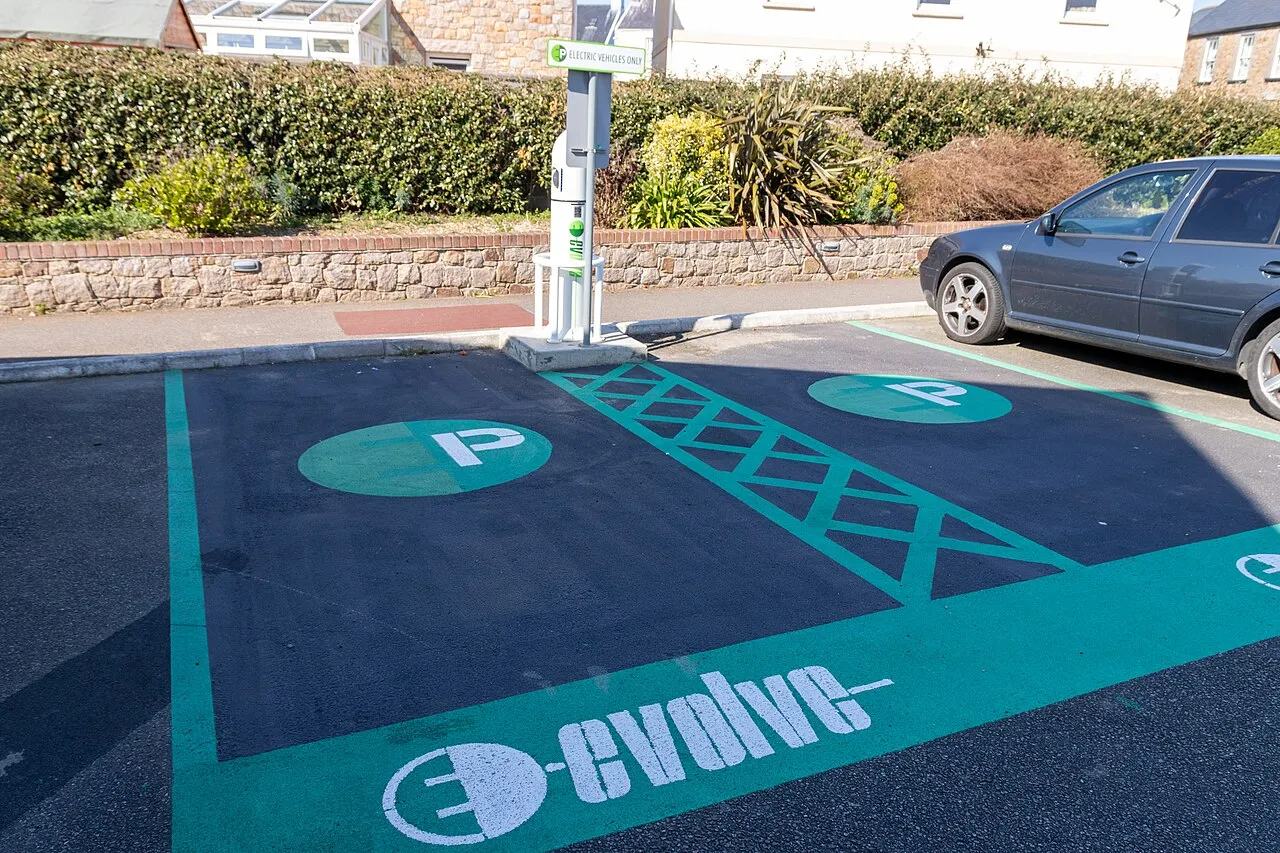
How to Plan EV Charging When You Park on the Street
Street parking can work with EV ownership when you confirm local rules, identify dependable charging, and build a routine that fits where you park.
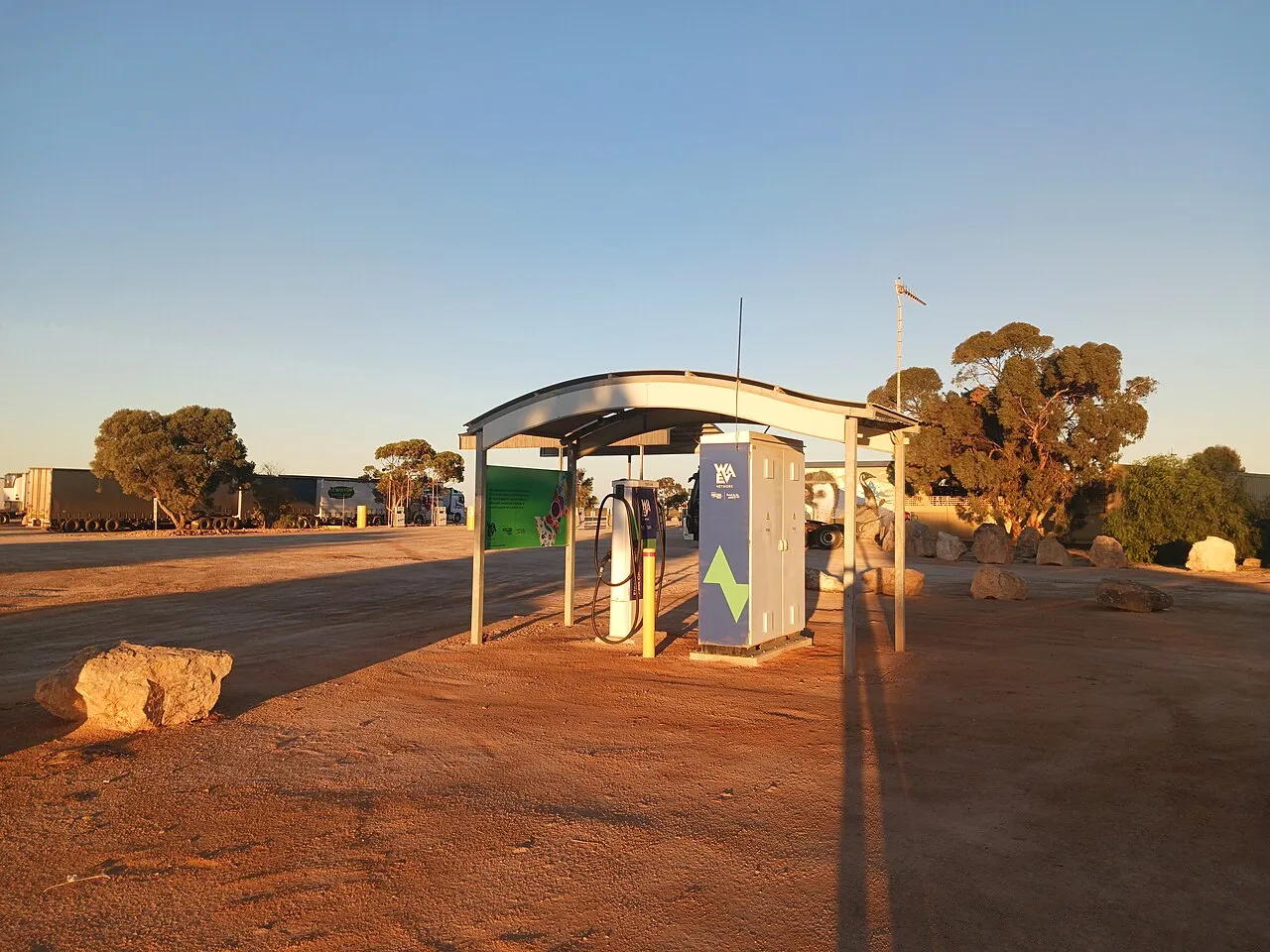
How to Choose an EV for Frequent Public AC Charging
If you often charge at public AC stations, compare the car’s onboard charger, connector access and how long it will usually be parked there.
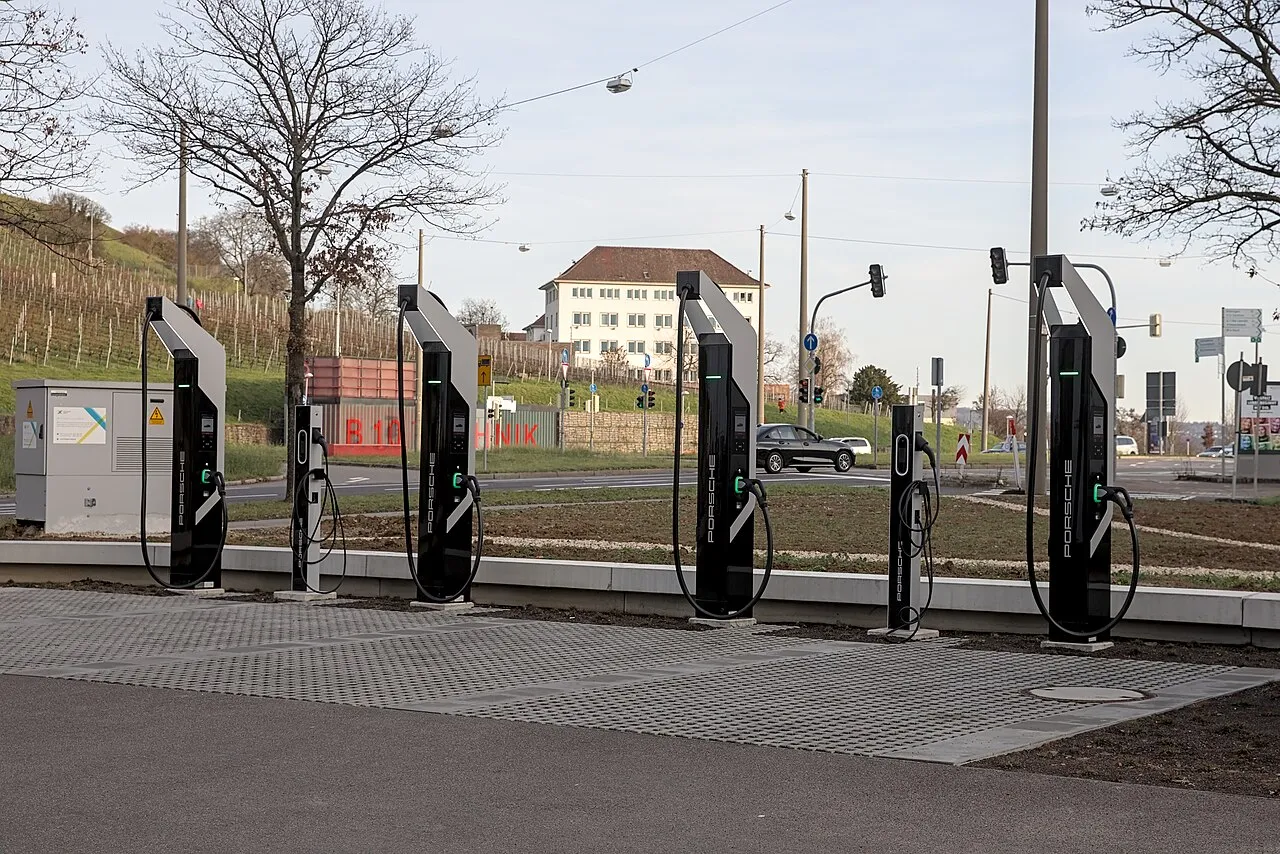
How to Build a Flexible EV Charging Routine for Work
Build charging around the miles you need for your next drive, using home, work, or public charging as your schedule allows. Keep a practical buffer.