How to Prepare for an EV Software Update and Install It
EV updates can change features or fix faults. Learn how to prepare, interpret release notes, and plan around the time your car may need to stay parked.
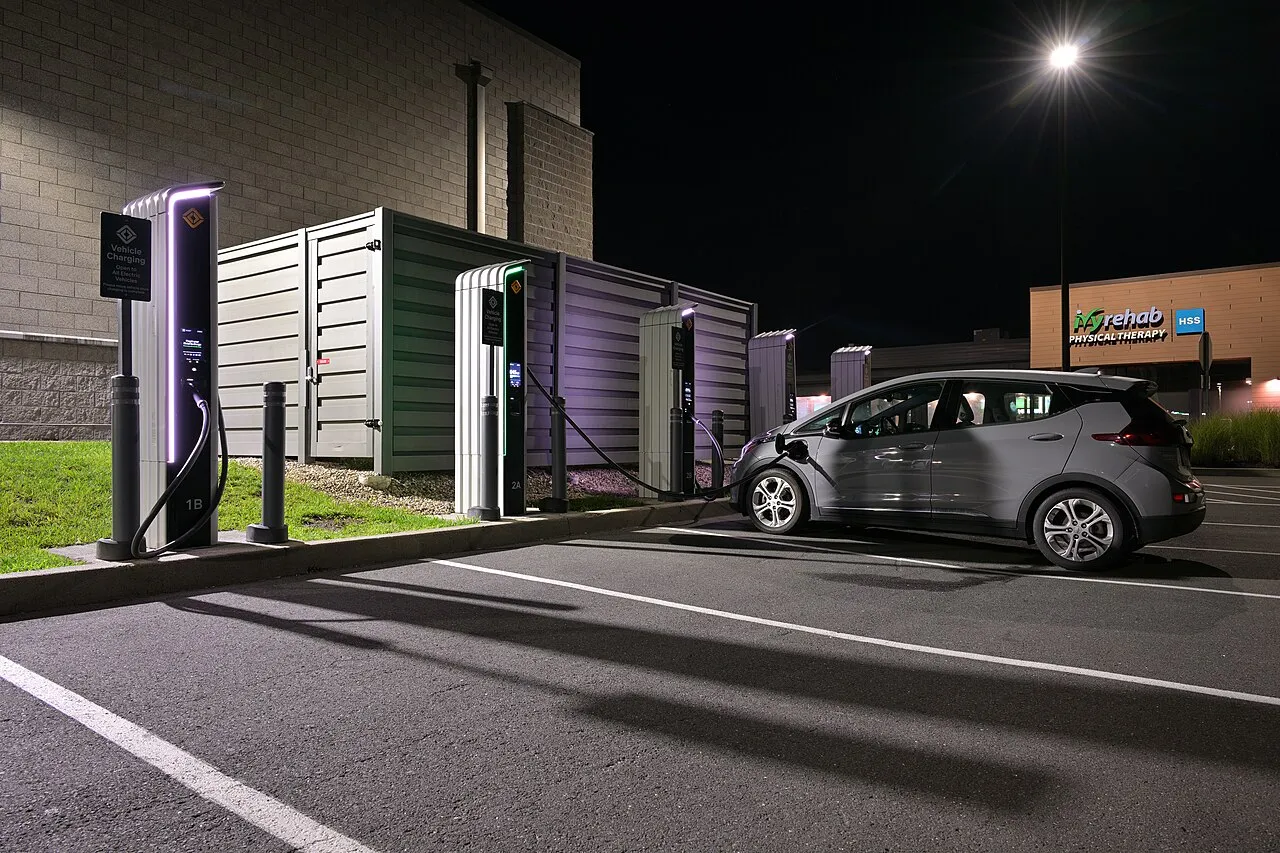
The short answer: Read the release notes and the vehicle’s installation instructions before starting. Check any battery, connection and parking requirements, then choose a time when you will not need to drive until the car confirms the update is complete.
Before installing an EV software update, read its release notes and the instructions shown in the vehicle or its app. Check the requirements, park somewhere the car can remain undisturbed, and start the installation only when you can do without it until completion. Downloading an update and installing it may be separate steps: a car that is still downloading may remain usable, while one that has begun installation may need to stay parked.
What happens during a software update?
An EV contains software for its displays, connected features and other vehicle systems. An update can change how a feature works, correct a fault or add a function where the vehicle supports it. Some updates arrive over a wireless connection; others require a service visit. An update notification tells you that something is available, but its instructions determine what you need to do next.
The process commonly has three parts: the vehicle obtains the update, checks that it can begin, and installs it. A car may download files while it is otherwise available for use, then wait for you to approve installation. It may also postpone the installation until its conditions are met. Treat a scheduled start time as a plan, rather than a promise that the car will be ready at an exact moment.
During installation, affected systems may restart. Screens, remote app controls or other functions might be temporarily unavailable. The vehicle’s own notice should say whether driving is restricted. If it says the car must remain parked, arrange your plans as though you will have no access to it until the completion message appears.
How to prepare before you start
Begin with the update notification. Check whether it asks for a minimum battery charge, a particular network connection or another condition. Follow the vehicle’s instructions for charging during the update; do not assume that every EV handles charging the same way while software is installing. If a download needs a connection, park where the required connection is reliable before you expect it to finish.
Choose a parking place you can use for the whole installation window. Leave enough room to access the vehicle if you need to read its screen afterward, and make sure your parking arrangements will not require you to move it midway through. If you must vacate a space at a set time, wait until you have a more suitable opportunity. Keep the key or phone key accessible in case the car asks you to return and confirm a step.
Before approving an installation that requires the car to stay parked, finish anything that depends on driving it. Retrieve items you will need if the update instructions say access may be limited. Allow extra time beyond any estimate shown on the screen or in the app: an estimate helps you plan, but it is not a guarantee. If you need the car for a trip, appointment or pickup soon, choose a later installation time when the vehicle allows it.
How to read the release notes
Start by identifying the update’s scope. Release notes may describe a visible change to a screen or control, a fix for a specific behavior, or a change that has little effect on daily driving. Read the description alongside any eligibility language. A feature mentioned in general notes may depend on your vehicle’s equipment, region or existing settings.
Look for actions the driver must take after installation. A changed menu location, a setting that needs review or a feature that requires setup matters more to your next drive than a broad description of improvements. If the notes mention a safety or operating issue, pay close attention to the stated instructions and any separate notice from the manufacturer. A software notification alone does not establish that a recall or service requirement has been completed.
Do not read more into brief notes than they say. A phrase such as a general performance improvement does not establish a measurable change in range, charging speed or acceleration. Likewise, an update appearing on another owner’s car does not mean it is ready for yours. The vehicle’s notification and the manufacturer’s instructions are the practical guides to what is available and what you should do.
When the car has to remain parked
A parked installation creates a simple but important constraint: the vehicle may not be available when you want to leave. Put it in the required parking state, follow the prompts for occupants and doors, and confirm that starting the update will not conflict with your plans. Do not begin while someone needs to wait in the car or while you may have to move it to clear a driveway, charger or parking space.
Once installation starts, let the vehicle complete its process. A screen going dark or restarting can be part of an update; by itself, it does not mean the car is ready to drive. Use the vehicle’s completion message or the status in its app when available. Avoid trying to interrupt the process simply because the displayed estimate has passed. If the car gives a specific error or recovery instruction, follow that instruction.
Remote status can be useful, but an app may update later than the vehicle itself or temporarily lose contact. If the status is unclear, check the vehicle when it is safe and practical to do so. Do not treat a missing notification as confirmation of completion. Wait for a clear ready state before making the car part of your travel plans again.
After the update finishes
Read the completion notice and any post-installation notes. Check the controls you regularly use before setting off, especially if the release notes describe a change to displays, driver settings, charging controls or navigation. You may need a moment to find a moved setting or confirm that a preference still suits you. Make those checks while parked so you are not learning a changed interface in traffic.
If the release notes describe a fix for a problem you have experienced, note exactly what behavior they say was addressed. A completed installation confirms that the update finished; it does not by itself diagnose every symptom the vehicle may have had. If the problem persists, record what happened and contact the manufacturer’s support or a service center through the route recommended for your vehicle.
What if the update stalls or fails?
First, distinguish a delayed download from a failed installation. A download that is waiting for a connection or another requirement may simply resume later. An installation error calls for more care because the vehicle may restrict use until the issue is resolved. Read the exact message on the screen or in the app and follow its recovery steps. If it says not to drive, leave the car parked.
If the status does not resolve or the instructions are unclear, use the manufacturer’s support channel or arrange service. Describe the message, whether the vehicle says installation started, and whether it reports that driving is allowed. Those details help support staff identify the stage that needs attention. Avoid repeated attempts to force a restart or bypass a warning unless the vehicle’s instructions tell you to do so.
For most owners, the useful habit is to treat each update as a short maintenance task: read what it changes, check what installation requires, pick a time when the car can stay parked, and confirm completion before driving. That approach leaves room for the differences between vehicles and for an update that takes longer than expected.
Frequently asked questions
Can I drive my EV while a software update installs?
Follow the vehicle’s update notice. If it says the car must remain parked during installation, do not plan to drive until it confirms completion. Downloading and installing may have different restrictions.
Should I charge my EV before an update?
Check the update instructions for a battery charge requirement and for guidance on charging during installation. Requirements vary by vehicle and update.
What should I look for in EV update release notes?
Check what changes, whether it applies to your vehicle, and whether you must review a setting or take another action afterward. Read any operating or safety instructions closely.
What should I do if an EV update fails?
Read the vehicle’s error message and follow its recovery instructions. If the status remains unclear or the car restricts driving, contact the manufacturer’s support channel or arrange service.
Related stories

What Everyday Use of the Tesla Cybertruck Requires
The Cybertruck's daily practicality depends on fitting its pickup body to your routes, parking and cargo needs. EPA and NRCan figures cover range and charging.
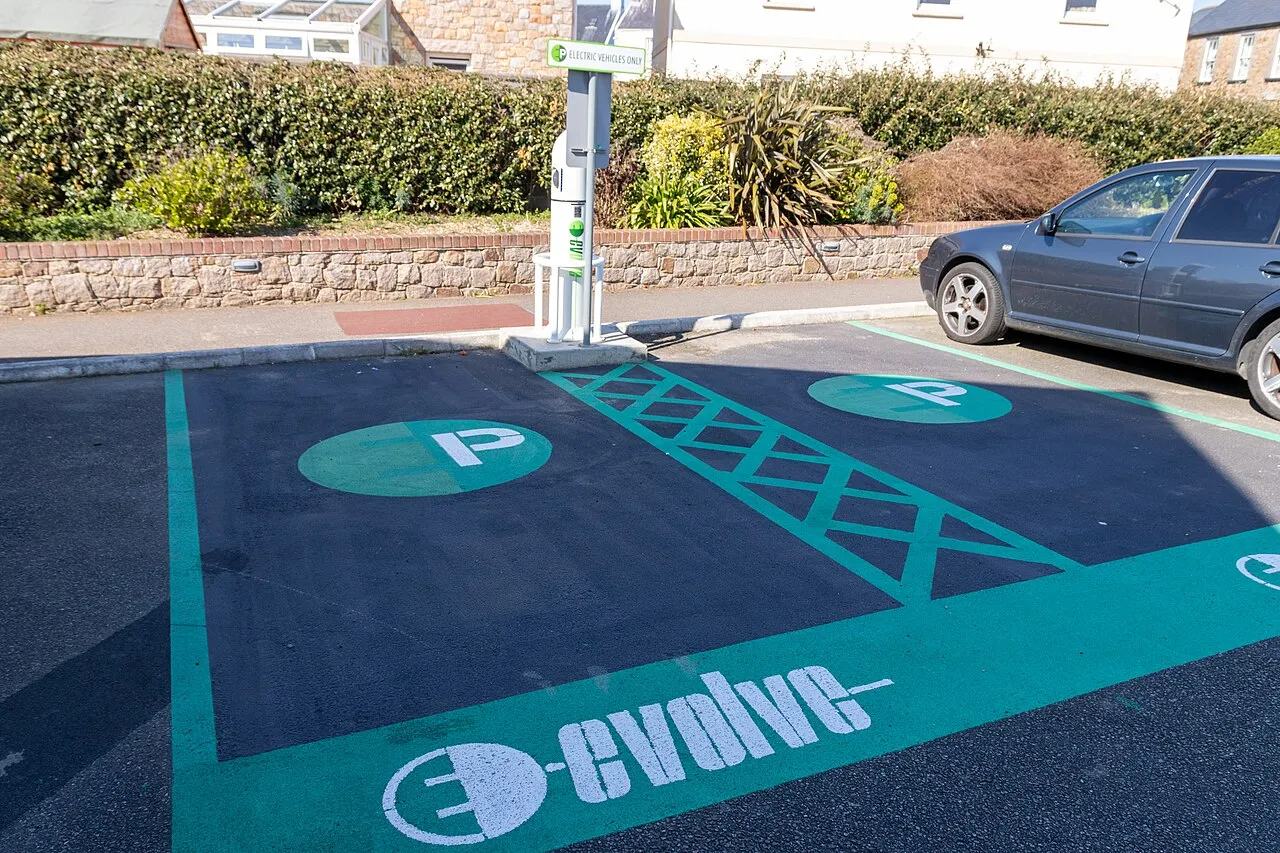
How to Plan EV Charging When You Park on the Street
Street parking can work with EV ownership when you confirm local rules, identify dependable charging, and build a routine that fits where you park.
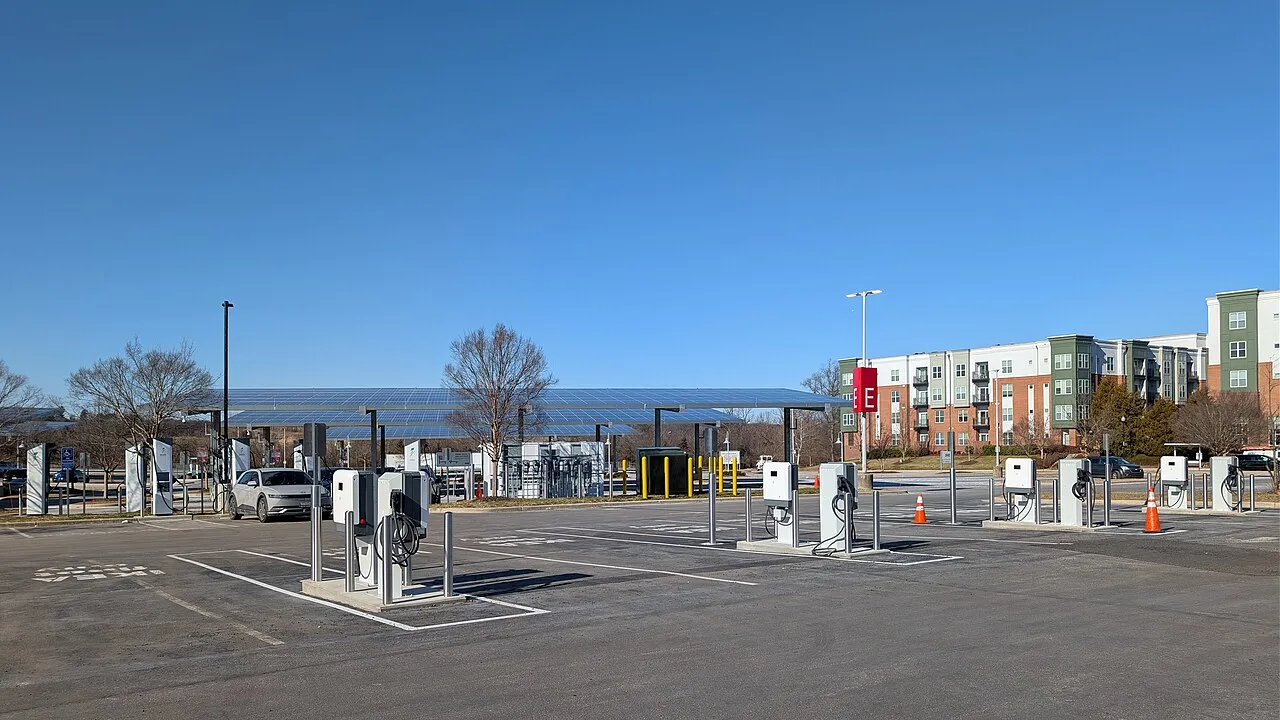
How to Confirm EV Charging Access in an Apartment Building
Before buying an EV, confirm who controls your parking space, whether charging is allowed, and what electrical work the building can support.